


How to Use the Dice Roll in Tome

It is now possible to perform a dice roll in Tome, our role‑playing game software. Discover how to use this feature during your campaign sessions.
Adding a Dice Roll in Tome
To add a dice roll in Tome, go to the Toolboard using the menu on the left side of your screen. You will then see the Toolboard with all available tools.
In the right-hand panel, select “dice roll” and drag the Dice Roll module into your Toolboard. You can then start configuring and using it.
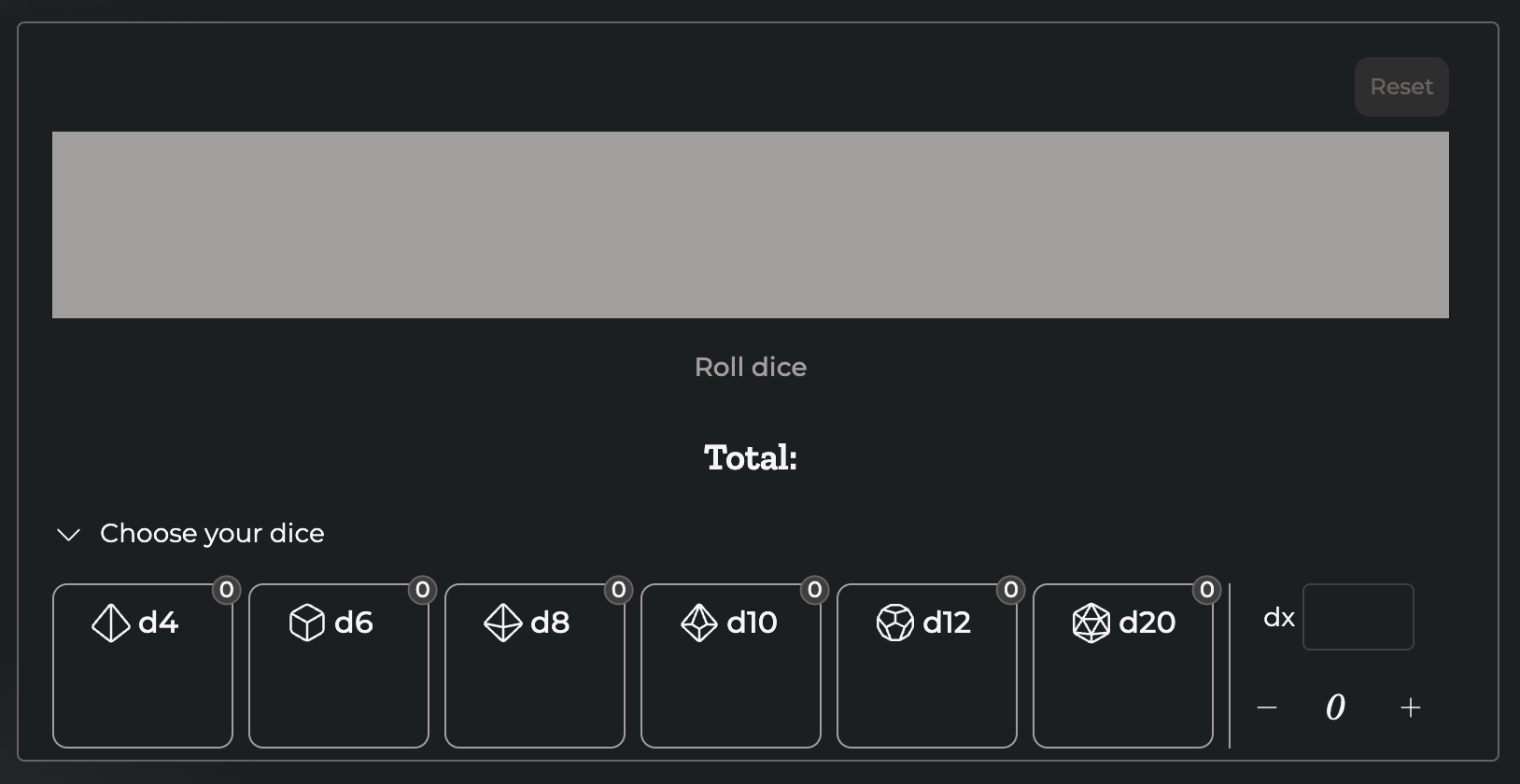
Dice available in Tome
In Tome’s Toolboard, six standard dice are available: d4, d6, b, d10, d12, d20 and d100.
To choose the dice you want to add, simply click the icon of the corresponding die. You can add as many dice as you like. They will appear in the grey area at the top of the module.
Creating a Custom Die
If you want to perform special dice rolls, you can easily add a custom die using the panel on the right side of the module.
After “dx”, enter the number of faces you want for your die, then press the Enter key on your keyboard.
Once the die has been added, you can delete the number you entered and add another one if you wish.
Adding a Modifier Manually
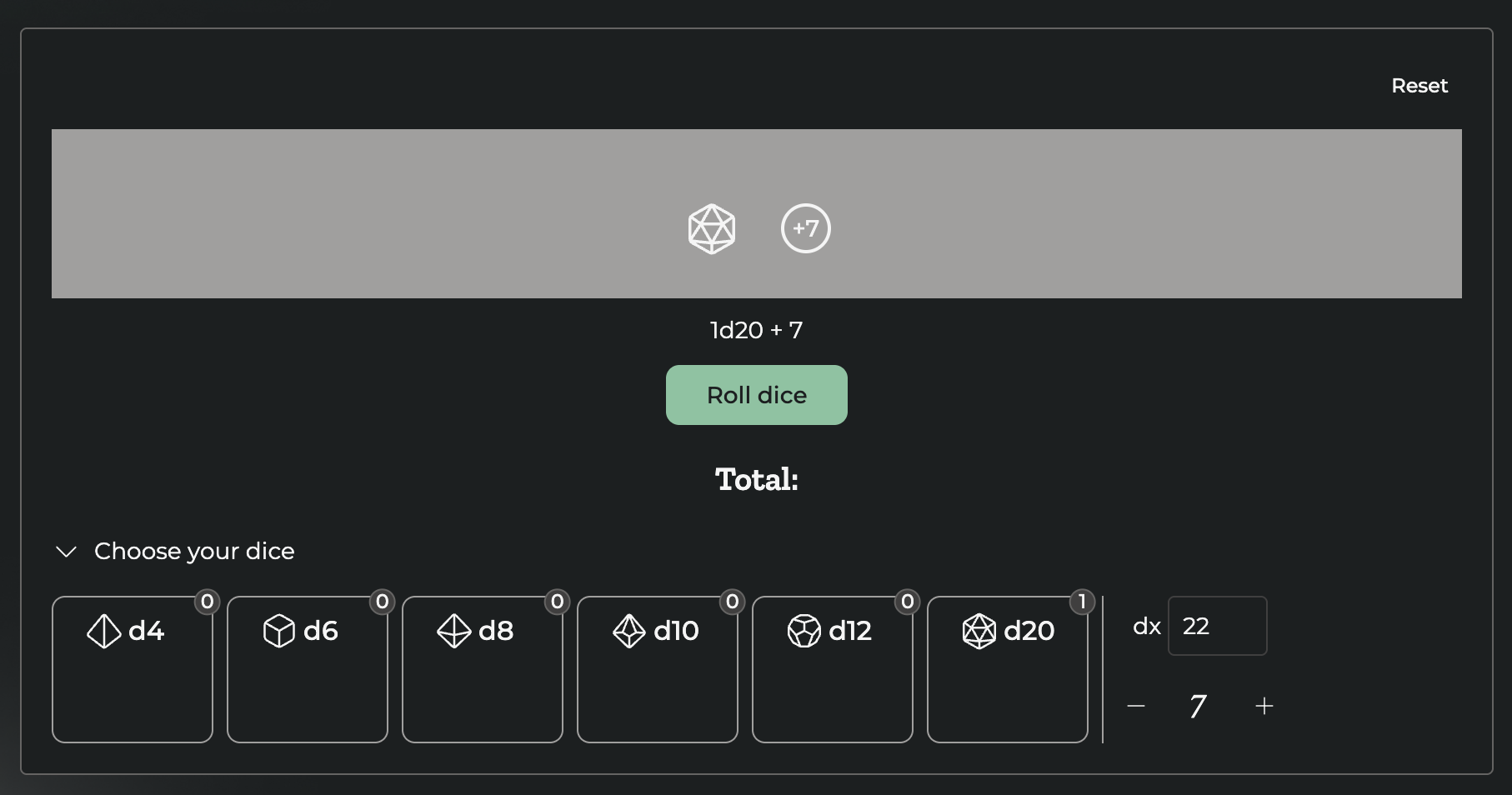
Sometimes, you may need to add a base modifier to your dice roll. To do this, enter the number of your choice in the field below the custom die.
You can also use the – and + controls in the module. The modifier will automatically be applied to your total roll.
Rolling Dice in Tome
To use the Dice Roll module from the Toolboard, simply click “Roll Dice.” Each time you click the button again, the dice are rolled once more.
You can adjust the modifier manually before each dice roll.
How to Remove Dice from the Toolboard
If you want to remove dice that are already selected in the grey area, two options are available:
You can reset all dice using the button at the top right of the module. Everything will be cleared.
If you only want to remove a specific die, simply click it in the grey area. You can repeat this action as many times as needed.
Setting up Dice Rolls with the Toolboard
During certain campaign sessions, you may need specific dice rolls. You can preconfigure these by creating multiple Toolboards.
For example, you can create a Toolboard for:
- Each player character and their inventory
- A specific combat scene during a session
- Specific scenarios encountered during your campaign
The dice roll is a particularly useful tool, as it lets you make random rolls easily without leaving the software during your session.
It is especially useful if you play role‑playing games online or if you run solo RPG sessions.